
Campos Cloud inside your VS Code
Manage applications, files and databases, host a folder in one click and follow the live console, without leaving the editor.
Free · VS Code 1.85 or newer · English and Portuguese
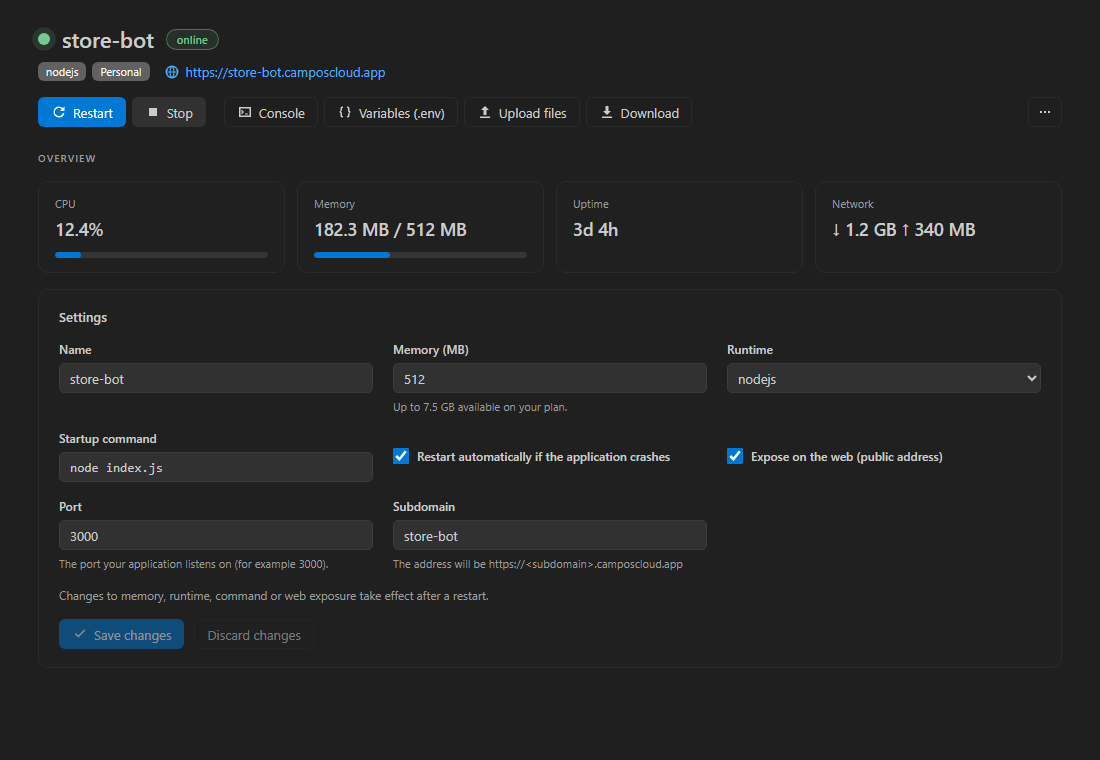
Everything you do on the dashboard, now in the editor
The Campos Cloud sidebar shows your applications, databases, teams and account. One click opens what you need.
Application panel
Status, CPU, memory, uptime and network, the actions and the settings in one place.
Host a folder
Right-click a folder and choose Host on Campos Cloud: runtime and main file are detected.
Files on the application
Open, edit and save with Ctrl+S right on the application. Create, rename and delete.
Variables as a .env
Edit the variables as a .env file. Saving applies them, checked line by line.
Databases
MySQL, PostgreSQL, MongoDB and Redis: create, start, stop and copy the connection.
Live console
A VS Code terminal with the latest lines and new ones as they arrive. Reconnects by itself.
From folder to online in one click
Right-click a folder and choose Host on Campos Cloud. The form comes filled in with the runtime, the main file and the variables from your .env.
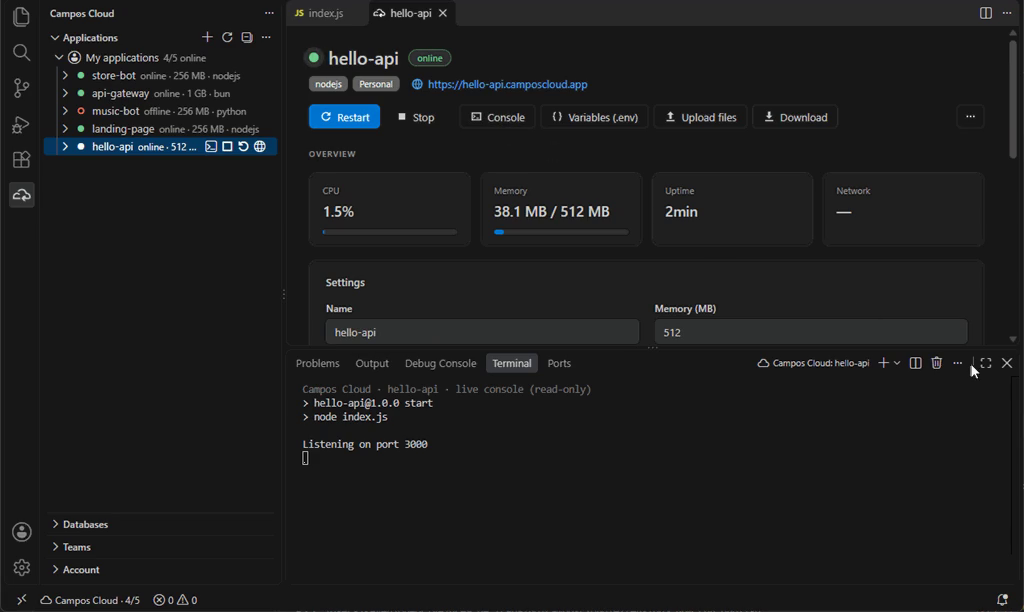
Edit the code right on the application
Open the application's files in your usual editor. When you save, the file goes to Campos Cloud and you choose when to restart.
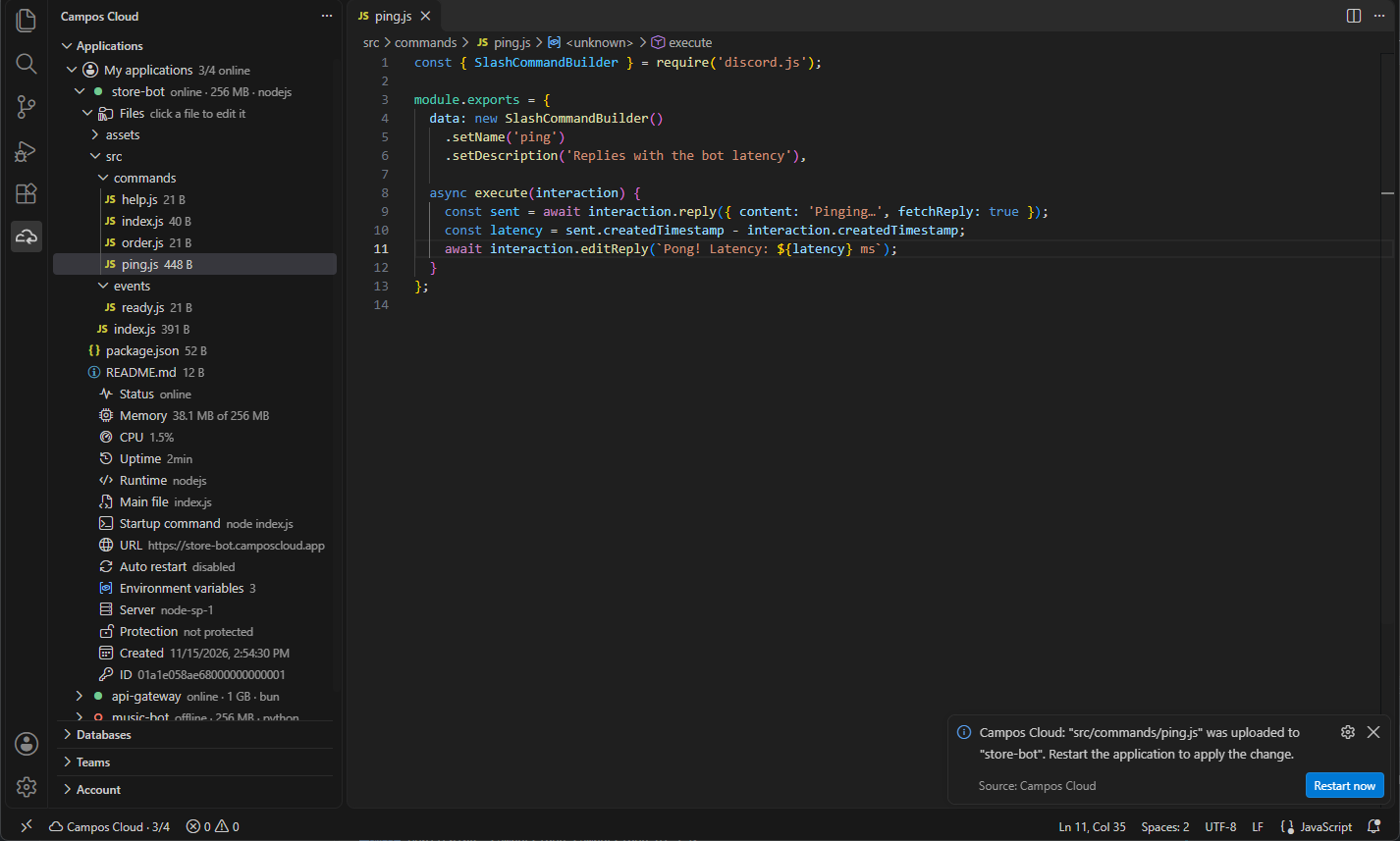
Environment variables as a .env
One variable per line, the way you are used to. Invalid lines show their number, and removing a variable asks first.
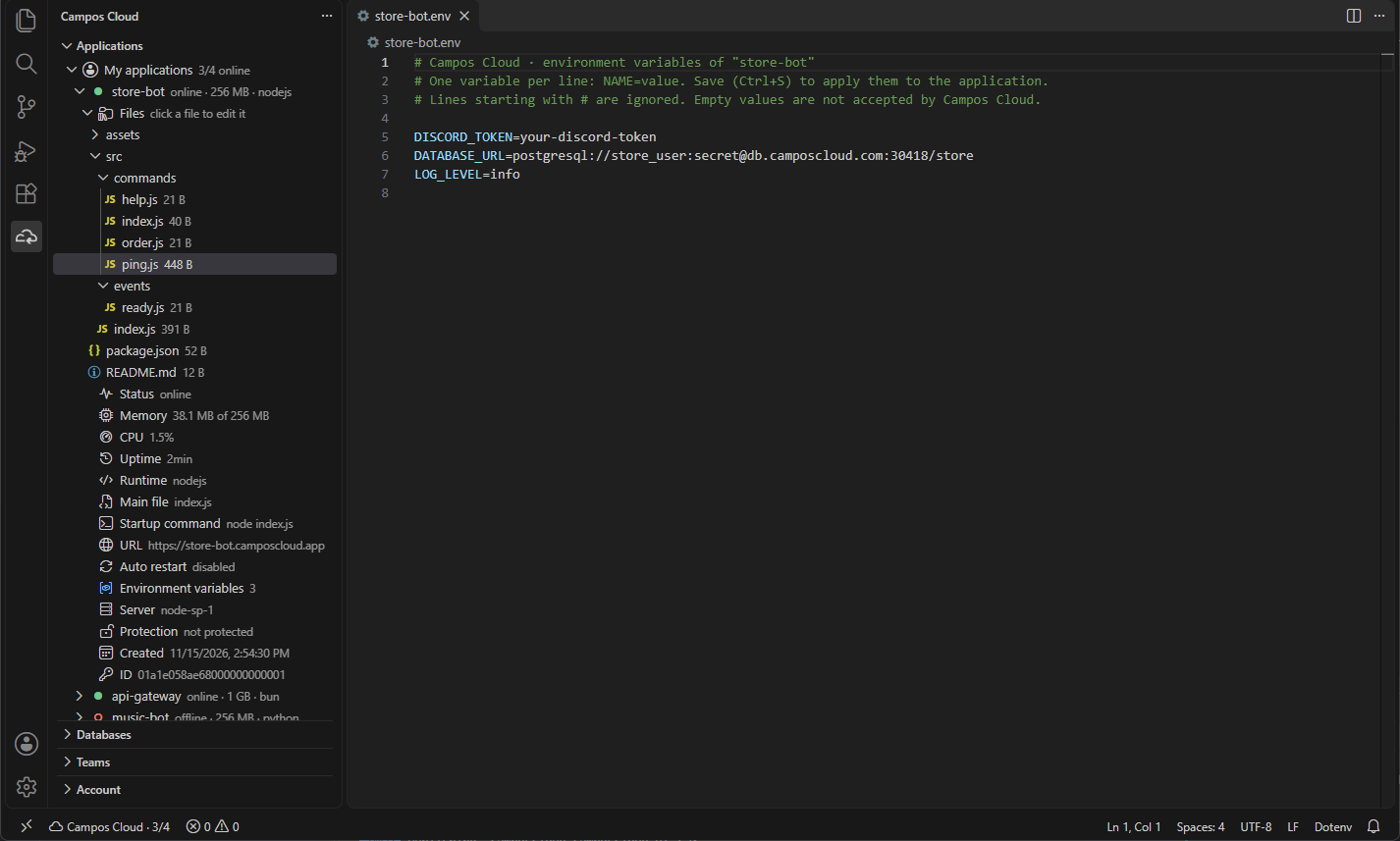
The console and your applications, side by side
Follow an application's console live in a VS Code terminal and see in the sidebar what is online and how much each application uses.
Install the extensionStart in a minute
- 1
Install the extension and open the Campos Cloud icon in the activity bar.
- 2
Generate your developer token in Your account → Developer.
- 3
Click Paste API token and that is it: your applications show up.
Built to avoid surprises
Deleting an application or database asks for confirmation and its exact name.
Protected applications and databases cannot be stopped, changed or deleted, and their files open read-only.
Saving a file never restarts the application by itself: you decide when.
The token lives in your system keychain, never in settings or project files.
Campos Cloud in your terminal
Prefer the terminal? The CLI creates, deploys and follows your applications with one command.
Meet the CLI